Access Point Mode vs Router Mode: What’s The Difference?
Quick Summary
Router mode creates and manages the network, assigning IPs and handling traffic.
Access point mode boosts WiFi coverage but doesn’t manage the network.
Choosing the right mode prevents weak signals and network conflicts.
AP mode and router mode together can provide seamless, reliable home connectivity.
Sidra Jefferi
12Minutes to read
Table of Contents
Most homes run WiFi without ever thinking about how the equipment is working. That’s usually fine until coverage becomes weak in certain areas. At that point, the setup behind the network starts to matter. The confusion often begins with one basic comparison: Access point mode vs Router mode. Both can deliver internet access, but work differently.
A router creates the network and controls how devices connect to the internet. An access point extends that same network into other areas. Mixing the two without understanding the setup results in weak signals or messy connections. The difference between access point mode and router mode changes how stable the whole network feels in real use.
In this blog, we will focus on clearing that confusion. We will break down how each mode works, when to use them, and how the right choice improves everyday connectivity. Let’s dive in!
Access Point Mode vs Router Mode: Key Differences at a Glance
Feature
Access Point (AP) Mode
Router Mode
Primary Role
Extends existing WiFi coverage
Creates and manages the network
IP Address Assignment
No, relies on the main router
Yes, assigns IP addresses to devices
Traffic & Security
Uses the main router for traffic management and firewall
Manages traffic and provides firewall protection
Standalone Operation
Cannot work independently
Can operate on its own
Best Use Case
Eliminating WiFi dead zones
Setting up and controlling the main network
What is Router Mode?
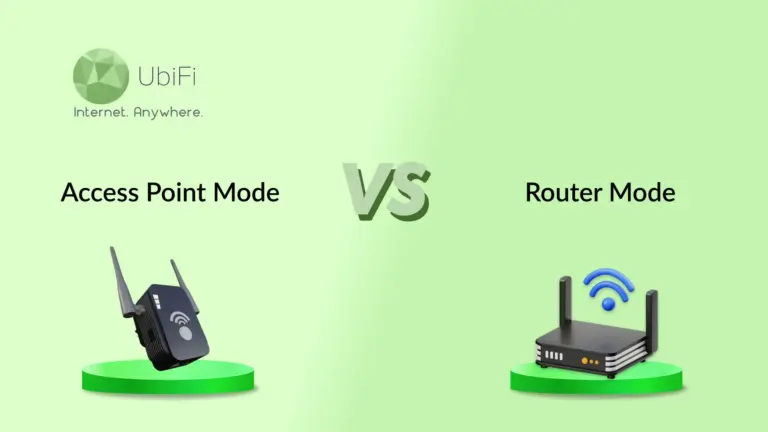
Router mode is the standard operating mode of a router. In this mode, the router creates and manages your network and connects it to the internet. It acts as a traffic manager, ensuring that data flows correctly between your devices and the internet.
A router in router mode also gives each device an IP address, so every connected device, such as phones, laptops, TVs, and smart home devices, can communicate without conflicts. At the same time, it provides security features, such as a firewall, that help block unwanted internet traffic.
When Should You Use a Router?
Use router mode when:
A single device sets up and manages the entire network.
The router is connected directly to the modem or internet source.
Devices need to receive IP addresses automatically, without manual setup.
Network security features, such as a firewall, are required.
Multiple devices will share the same internet connection.
Features such as guest networks, parental controls, or traffic management are needed.
Wireless Router: Pros and Cons
Pros
Cons
Creates and manages the network automatically
WiFi coverage can be limited in larger properties
Assigns IP addresses to connected devices
Signal strength may drop in distant rooms or buildings
Includes built-in security features such as a firewall
Adding multiple routers in router mode can cause network conflicts
Supports both WiFi and wired connections
Requires more configuration than a simple access point
Often includes features like guest networks and parental controls
Performance can suffer if one router is expected to cover a very large area
Example
A home receives internet service through a modem. A wireless router is connected to that modem and set to router mode. The router creates the WiFi network, assigns IP addresses to phones, laptops, TVs, and smart devices, and manages all internet traffic. Every device connects through that router, making it the central point of the entire network.
AP Mode stands for Access Point Mode. In this mode, a device stops working as a router and acts only as a wireless access point. It extends WiFi coverage from an existing network, allowing devices to connect in areas where the main signal is weak.
Unlike a router, an access point does not create or manage the network. It does not assign IP addresses, control internet traffic, or handle routing functions. Those tasks remain with the main router. An access point simply receives the network connection, usually through an Ethernet cable, and broadcasts WiFi to expand coverage. It keeps all devices on the same network.
When to Use AP (Access Point) Mode
AP mode is a good choice when:
WiFi coverage does not reach every part of the home, office, or property.
A main router is already managing the network.
Dead zones need to be covered without creating a separate network.
A second router needs to be used as an access point.
A wired Ethernet connection is available between the main router and the access point.
Consistent WiFi coverage is needed across multiple rooms or buildings.
Access Point: Pros and Cons
Pros
Cons
Extends WiFi coverage to areas with weak signals
Requires a main router to manage the network
Keeps all devices on the same network
Does not assign IP addresses or manage traffic
Helps eliminate dead zones
Usually works best with a wired Ethernet connection
Can turn an old router into a useful access point
Offers fewer network management features
Provides a simple way to expand coverage
Cannot replace a router as the main network device
Example
Suppose a router is installed at one end of a house, but the WiFi signal becomes weak in a detached garage. A second router is connected to the main router with an Ethernet cable and switched to AP mode. The second device broadcasts WiFi in the garage area, providing strong coverage while keeping all devices connected to the same network.
Access Point Mode vs Router Mode: Key Differences
Understanding the difference between Access Point Mode and Router Mode is crucial for setting up a reliable, efficient network. Both can provide WiFi, but they serve very different roles in managing devices and internet traffic.
Function
Access Point Mode: Extends the WiFi signal from an existing network. It does not manage traffic or assign IP addresses. All data passes through to the main router.
Router Mode: Creates and manages the network. Assigns IP addresses, directs traffic between devices, and connects the network to the internet.
Traffic Management and Security
Access Point Mode: Does not control traffic or provide security. It relies on the main router for firewalls and data handling.
Router Mode: Acts as a gatekeeper, managing internet traffic, providing firewall protection, and using NAT to secure the network.
Standalone Capability
Access Point Mode: Cannot work on its own. Requires an Ethernet connection to a router or switch to function.
Router Mode: Operates independently to create a network from a single internet connection.
Placement and Setup
Access Point Mode: Placed where WiFi is weak or additional coverage is needed. Connected to the main router or switch through Ethernet, sometimes using PoE for convenience.
Router Mode: Placed at the entry point of the internet line, such as near the modem, acting as the network’s center.
IP Address Assignment
Access Point Mode: Does not assign IP addresses. Requests are forwarded to the main router.
Router Mode: Assigns IP addresses to all devices via DHCP and monitors them on the network.
In short, a router builds and manages the network, while an access point extends it. Choosing the right mode ensures strong WiFi coverage and smooth internet traffic throughout the space.
Setting up access point mode is usually straightforward on most modern routers.
Connect the router to a computer and open its settings page.
Find Operation Mode, Working Mode, or a similar option.
Select Access Point Mode (AP Mode) and save the changes.
Connect the access point to the main router using an Ethernet cable.
Set the WiFi name and password if needed.
Restart the device and connect your devices to the new WiFi signal.
Once AP mode is enabled, the device stops handling routing tasks such as DHCP (Dynamic Host Configuration Protocol), NAT (Network Address Translation), and firewall management. The main router continues to manage the network, while the access point focuses on extending WiFi coverage.
How to Configure/Set Up Router Mode?
Router mode is the default mode on most routers. It is used when the device will act as the main controller of the network.
Connect the router directly to the modem or internet source.
Open the router’s settings page through a web browser.
Select Router Mode if the router offers multiple operating modes.
Configure the internet connection using the details provided by the internet service provider, if required.
Create a WiFi network name and password.
Save the settings and restart the router.
After setup, the router begins assigning IP addresses, managing internet traffic, and providing network security. Every wired and wireless device connects through the router, making it the central point of the network.
Comparing Access Point Mode vs Router Mode becomes much easier once the role of each is clear. Router mode creates and manages the network, handles internet traffic, assigns IP addresses, and provides security. Access point mode does not manage the network. It extends WiFi coverage and brings a stronger signal to areas where the main router cannot reach.
The right choice depends on what the network needs. Router mode is best when setting up and controlling the entire network. Access point mode is the better option when expanding coverage without creating a separate network. Knowing the difference helps avoid common setup mistakes and leads to a more stable, reliable connection throughout the property.
If you want dependable internet connectivity built for every corner of your home, explore our plans today!
FAQs on Access Point Mode vs Router Mode
Should I use router mode or access point mode?
Router mode is the right choice when a device needs to create and manage the entire network. Access point mode is better when a router is already in place and WiFi coverage needs to be extended to additional areas.
Is WiFi router or access point mode better?
Neither is better in every situation. Router mode manages the network and internet connection, while access point mode expands WiFi coverage. The best option depends on whether network control or wider coverage is needed.
Can a router work as an access point?
Yes. Many modern routers include a built-in access point mode. Once enabled, the router stops performing routing functions and only extends WiFi coverage from the main network.
Does access point mode improve WiFi coverage?
Yes. Access point mode is designed to bring WiFi to areas where the main router’s signal is weak. It helps reduce dead zones and provides a more consistent connection across larger homes, buildings, or properties.
Sidra Jefferi is the Marketing Director at UbiFi with deep expertise in corporate actions and a strong understanding of both international and domestic markets. She combines her analytical skills and attention to detail with strategic marketing leadership to help expand UbiFi’s mission of delivering reliable internet to rural and underserved communities.
Internet That Moves With You — Plans Begin at $89.99/mo
Stay online from rural areas or anywhere on the road.