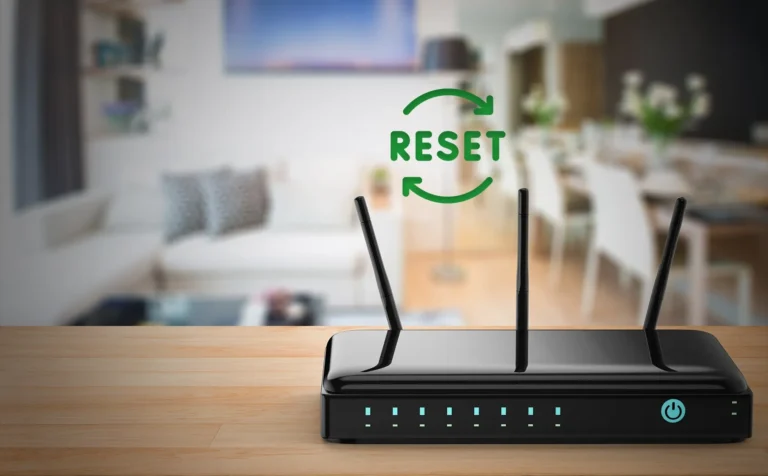
When your internet starts acting up, your router is often the main problem. It is responsible for managing how your home or mobile devices connect to the internet. Every time you stream a show, join a video call, or check your email, your router keeps that connection alive and steady. But when speeds drop, you might wonder: how to reset the router or how do I reboot my router?
Before we begin, it’s key to know the difference between restarting and resetting. How to restart the router properly is simple: turn it off and back on to clear minor glitches without touching your personal settings.
Resetting is different. A factory reset wipes everything clean. Your Wi-Fi name, password, and any custom settings disappear. It’s like taking the router back to day one. This deeper step is helpful when basic fixes fail, or when a stubborn issue keeps cutting your connection. In this blog, we’ll discuss how to reset a router safely and ensure stable internet connection. Let’s start!
When to Consider Resetting a Router
Resetting a router isn’t something you do every day. It’s a more decisive step than a quick restart, but in some cases, it’s exactly what your network needs. Here’s when a factory reset makes sense:
Persistent Slow or Unstable Connection
If your internet keeps lagging, dropping out, or feels unusually sluggish, a reset can clear old data or errors that may be slowing things down.
Forgotten Passwords or Login Details
When you lose access to your Wi-Fi password or can’t sign in to the UbiFi F1 Router’s admin panel, a reset restores everything to default settings, giving you a fresh start.
Router Not Responding or Showing No Signal
If your router’s lights are on but there’s no internet connection, or it doesn’t respond to any commands, a complete reset often revives it.
Configuration Issues After Setup or Updates
Sometimes new settings or firmware updates cause conflicts. A reset wipes misconfigurations clean so you can reconfigure it appropriately.
Security or Privacy Concerns
If you suspect unauthorized access or strange devices on your network, resetting the router helps remove hidden risks and restores control.
Preparing the Router for Resale or Transfer
Before selling, gifting, or recycling your router, make sure to reset the wifi box. This erases all personal data, keeping your information private.
Simply put, a router should be reset when persistent connection issues, forgotten passwords, misconfigurations, or security concerns occur, or before transferring the device. It restores default settings and gives your network a fresh, stable start.
If resetting your router isn’t enough to fix slow or unstable internet, it might be time to upgrade your connection. If you live in rural parts of the U.S., dedicated rural internet solutions provide reliable, high-speed service designed for remote areas, ensuring your router and devices stay connected without interruptions.
Types of Router Resets
Understanding the different types of resets helps you choose the proper fix without removing what you don’t need. Knowing how do I reset modem can also help in troubleshooting combined modem-router setups.
1. Soft Reset (Restart)
A soft reset is the simplest form of a reset. You just turn the router off, wait a moment, and power it back on. This is essentially how to restart the router for quick fixes. It clears minor glitches and refreshes the connection without erasing any of your settings. It’s quick, safe, and ideal for minor hiccups like a slow signal or short connection drops.
2. Hard Reset (Factory Reset)
A hard reset is a deeper step. It takes the router back to its original state, erasing saved Wi-Fi names, passwords, and custom configurations. This is the go-to when a soft reset doesn’t work, login details are lost, or the router’s settings are corrupted. Knowing how to reset the router properly at this stage lets you start fresh as if the router were brand new.
A soft reset is your first line of defense. A hard reset is your last resort. Knowing when to use each can save both time and frustration.
How to Soft Reset (Power Cycle) a Router?
A soft reset is quick and often fixes minor connection issues without touching your settings. Here’s how you can do it:
- Turn off the router: Use the power button if your router has one, or unplug it from the wall.
- Wait 30 – 60 seconds: This pause allows the router to clear its memory and reset temporary glitches.
- Turn it back on: Plug it back in or press the power button to start it up.
- Wait for the lights: Give the router a minute or two until all indicator lights are stable. This shows it’s fully powered and ready.
- Check your connection: Try loading a webpage or streaming a video to see if the internet is back to normal.
A soft reset rarely causes issues, but it often solves the frustrating slow speeds and random dropouts that can interrupt your day.
How to Hard Reset (Factory Reset) a Router?
A hard reset restores your router to its original factory settings. Use it when other fixes fail or you need a fresh start. The process to do this is easy.
- Power on the router: Make sure the device is plugged in and fully powered.
- Locate the reset button: Look for a small button at the back or bottom of the router. It’s often recessed.
- Press and hold the button: Use a pin, paperclip, or similar tool. Hold it for 10–15 seconds until the lights start flashing or the router begins to reboot.
- Release and wait: Once the lights indicate a reboot, let the router restart completely. This may take a few minutes.
- Log in with default credentials: After the reset, you’ll need to access the router using its original username and password, usually printed on the device.
- Reconfigure your settings: Set your Wi-Fi name (SSID), password, and any other custom settings you had before.
A hard reset wipes everything, but when done carefully, it can clear stubborn problems and give your network a clean, secure start.
Facing Issues with your router? We can help!
Contact UsWhat Happens After a Factory Reset
Once you’ve reset the wifi router, all the customized settings, older passwords, and configurations will be gone. You’ll need to configure everything from the start. The router will return to its default settings.
You will have to connect all the devices again using the default WiFi username and password. Also, you’ll have to reconfigure the internet access and custom setups.
Tips and Best Practices Before and After Resetting
Resetting a router can solve many issues, but doing it thoughtfully makes the process smoother and safer. Let’s see how to approach it the right way:
Save Important Settings
Before resetting, jot down your Wi-Fi name, password, and any custom configurations. This makes it easier to restore your network afterward.
Try Simpler Fixes First
A restart or firmware update can often fix problems without a full reset. Use a factory reset only when other solutions fail.
Avoid Frequent Resets
Resetting too often can put unnecessary wear on your router and isn’t good for long-term performance.
Change Default Login Credentials
After a reset, immediately update the router’s username and password. This protects your network from unauthorized access.
Update Router Firmware
Keeping the firmware current improves both speed and security. After a reset, check for updates before reconnecting all your devices.
In short, before and after resetting a router, save your settings, try simpler fixes first, and avoid frequent resets. Always update login credentials and firmware afterward to keep your network secure and running smoothly.
When Resetting Doesn’t Solve the Problem
Sometimes, even factory resetting the router can’t fix the issue. If your router continues to give issues, the problem may be hardware-related. Internal components can wear out, or the signal strength may be weakened due to age or damage.
Other times, the root cause isn’t the router at all. Check your modem, cables, and connections. There might be internet outages from the internet provider’s end or interruptions that no reset can fix.
If problems persist despite troubleshooting, you should reach out to customer support. They can run diagnostics and guide you further. In some cases, replacing the router may be the fastest and most reliable solution. Sometimes, the problem could be a router placement as well, which you can check and fix.
In short, resetting a router is a reliable way to resolve an issue, but in some cases, the problem might persist. Knowing when to seek help ensures you get your internet back without unnecessary frustration.
Conclusion
How do you reset a router may seem complex, but understanding the difference between a soft reset and a hard reset makes it straightforward. A soft reset is a quick, safe way to clear minor glitches. A hard reset, while more powerful, gives your network a clean slate when bigger issues arise.
Always take precautions: save your settings, try simpler fixes first, and secure your network after a reset. Remember, not every problem is solved by resetting. Sometimes the issue lies with hardware, cables, or your ISP. Here is a guide to the best high-speed internet router you can follow.
When done right, resetting your router restores stability, boosts performance, and gives you peace of mind. If you still face issues with your internet, switching to a better internet solution might be the right fix. For that, you should explore our plans today!
FAQs on Resetting the Router
When should a router be reset?
A router should be reset when slower speeds, connection drops, forgotten passwords, misconfigurations, or security concerns occur. It’s also useful before transferring or selling the device. Resetting is a last resort when simpler fixes like restarting or updating firmware don’t work.
Can resetting fix slow internet?
Yes, resetting can help if slow internet is caused by configuration errors or persistent glitches in the router. A soft reset often improves minor slowdowns, while a hard reset can solve deeper issues by restoring default settings.
How can I reset my Wi-Fi router?
You can reset your router using a soft reset or a hard reset. For a soft reset, simply turn it off and back on. For a hard reset, press and hold the reset button (usually at the back or bottom) for 10–15 seconds to restore factory settings. Remember, a hard reset erases all custom settings.
How do I factory reset my router?
To factory reset your router, find the small reset button on the back or bottom of the device. Press and hold it for 10 to 30 seconds (check your router’s manual for exact timing) until the lights blink or turn off. This will restore the router to its original factory settings, erasing custom Wi-Fi names, passwords, and configurations. After resetting, you’ll need to set up your network again using the default credentials provided by the manufacturer.
Does unplugging the router reset it?
Yes, unplugging a router will reboot it. This helps clear temporary glitches, refresh the network connection, and fix common Wi-Fi issues. However, this is not the same as a full factory reset. A factory reset removes all custom settings, including your Wi-Fi name, password, and preferences. It can only be done by pressing and holding the router’s physical reset button.
Is it safe to reset a router frequently?
Frequent resets aren’t recommended as they can put wear on the router and are usually unnecessary. Soft resets for minor glitches are safe, but hard resets should only be done when other fixes fail.
What will happen if you reset a router?
Resetting a router removes all custom settings and returns it to its original factory state. This means your Wi-Fi name, password, network settings, and any personal adjustments will be deleted. After a reset, you must set up your router again from the beginning. A reset can solve more serious connectivity problems, get rid of glitches, and fix issues caused by bad configurations. However, you should only use it if a simple restart doesn’t work.
How often should I reset my Wi-Fi router?
Most people only need to reset their Wi-Fi router once every few weeks to keep it running smoothly. If your speeds drop, devices disconnect, or the connection feels slow, a quick reboot can refresh the network and clear temporary bugs. For homes with heavy streaming or gaming, resetting it once a week can help maintain consistent performance. If you find yourself rebooting it daily, that usually means there’s a bigger issue, like outdated firmware, interference, or an aging router that may need replacement.
How do I reset my WIFI router and modem?
To reset your WiFi router and modem, unplug both devices from the power source. Wait at least 30 seconds to let them fully discharge. Plug the modem back in first and give it 1 to 2 minutes to reconnect to your ISP. Then plug in the router and wait for the lights to stabilize. This soft reset fixes most slow speeds, dropped connections, and WiFi issues without losing your settings. If you want a hard reset, hold the router’s reset button for 10 to 15 seconds. Keep in mind that this will restore factory settings.
What should be done after resetting a router?
After a reset, reconnect your devices using the default Wi-Fi name and password. Update login credentials, reconfigure custom settings, and check for firmware updates. This ensures your network is secure and fully operational.
What is the difference between restarting and resetting a router?
Restarting, or power cycling, is a quick refresh that solves minor connectivity issues without affecting settings. Resetting, on the other hand, wipes everything clean and restores the router to factory settings. Resetting is more powerful but should be used only when necessary.
Kevin Peterson
Kevin Peterson is a telecommunications expert and proud Chicago native with over a decade of industry experience. He’s passionate about expanding internet access and improving infrastructure, especially in underserved communities. Committed to bridging the digital divide, Kevin believes everyone deserves reliable connectivity in today’s digital world.