The internet router is the most essential part of the internet connection. With the correct configuration, it ensures you get the best speeds. But many users face difficulties doing so, leading to slow-loading websites, buffering videos, failed downloads, and more. In this blog, we’ll discuss how to set up a router properly so you don’t experience any speed-related issues. Let’s begin.
Essential Things to Note Before You Get Started
Before you set up the internet router, make sure a few things are in place. These will help you save time and avoid common mistakes that could slow your internet connection.
Check Your Internet Connection
First, make sure your internet service is working. Plug your modem directly into a computer using an Ethernet cable. Open a browser to check if the pages load. If they don’t, the router is not the issue. Call your internet provider first. Also, confirm your plan speed. A router cannot deliver more speed than what you are paying for.
Gather Required Documentation
Keep your internet account details handy. This may include your ISP login, network name, and password. Most U.S. providers send this by email or print it on the modem label. Having this ready makes setup easier. It also helps if you need to reset things later.
Look for a Dedicated App
Many modern routers come with setup apps from brands like Netgear, TP-Link, and ASUS. Download the app before you begin. These apps simplify the process and reduce errors. They also help with updates and security checks after setup.
Install Antennas in the Correct Position
Antennas matter more than most people think. Attach them firmly before turning on the router. For best coverage, angle them straight up or slightly out. Don’t point all antennas in the same direction. This helps the signal spread evenly across rooms and floors.
In short, ensure your internet service is active, and your ISP credentials are with you. Get access to all the required documents. Position the antennas upright to maximize signal coverage.
How to Set Up a Wi-Fi Router
Setting up a Wi-Fi router is easy, but the steps must be done in order. Each step builds on the last one. If done right, you get fast speed and steady coverage from day one.
Choose the Correct Position
The placement of the router directly impacts the speed. A central spot will help with better coverage. Try keeping it in an open and raised spot. Don’t keep it in corners, basements, or metal shelves. Thick walls, mirrors, and electronic appliances also reduce the signal strength. Ensure the router can spread the signal freely.
Connect to the Internet
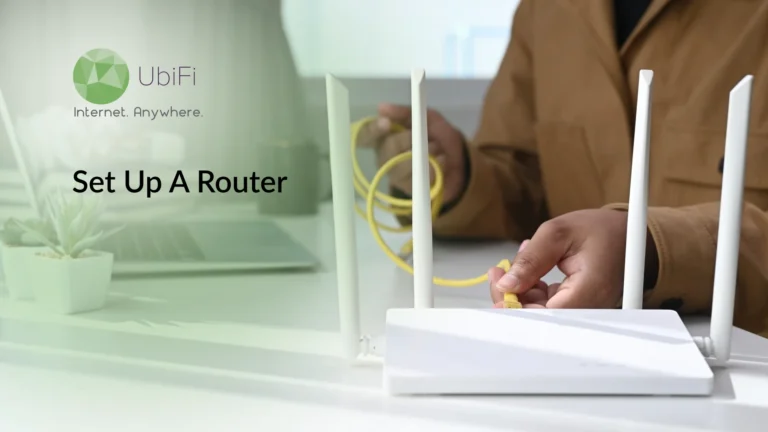
Start with the modem or gateway from your internet service provider. Power it on first, then wait a minute. Let the lights settle before you do anything. Once it’s ready, connect your router to the port marked WAN or Internet using an Ethernet cable.
If you live in a small apartment or use the internet in one main area, a single router will do the job. For larger homes or multi-story spaces, a mesh system makes more sense. Mesh routers spread the signal evenly and remove weak spots. During setup, always use a wired connection. It keeps the process stable and avoids early dropouts.
Now watch the router lights to see the actual status of the connection. Once the lights look normal, test the connection by connecting your phone or laptop to the router. Open a few websites and run a quick speed test. If pages load slowly or fail, there might be an issue with the connection.
Configuration for the Wireless Router Gateway
Once you’ve made sure that the router is working fine, connect it to the gateway. If your modem also acts as a gateway, confirm it recognizes the router. Some gateways need “bridge mode” enabled.
Now open the router’s app or enter its web address in a browser to access controls. Follow the setup guide. Change the default login credentials. Use a strong password you can remember to protect your settings from outside access. Choose a name for your WiFi. Avoid personal details like your address or last name.
Once the setup is done, check for any firmware updates, as they help fix bugs and improve speed. Most routers check this automatically. If prompted, update now.
If the router behaves oddly or settings don’t apply correctly, it may help to reset the router and configure it again from scratch.
Use Auto Configuration Tools When Available
Many routers offer auto-tuning features. These tools select the best channels and settings for your area. Let them run. They adjust in the background and reduce interference from nearby networks.
Set Up Security
Turn on WPA3 or WPA2 security and disable open networks. Keep guest access separate if you use it. These steps protect your data and keep your speed consistent. A secure network is a stable network.
Place the router in a central, elevated position and connect it to your modem’s WAN port via Ethernet. Configure the app settings to enable WPA3 security and, if necessary, bridge mode to ensure a stable, protected connection.
Closing Lines
The right setup of the WiFi router helps get good internet speeds while ensuring stability. Start by checking the internet connection and placing the router in the right spot to avoid WiFi router problems. Using a wired connection during setup, positioning antennas properly, and keeping the router updated help avoid common speed issues like buffering and slow downloads.
Once the router is connected, configuring security settings, choosing the right Wi-Fi name, and enabling auto-configuration tools make things easy. These small but essential steps help reduce interference and keep your network stable. If you need help in setting up your router, get in touch with our experts.
FAQs on New Router Setup
Can I just plug in a new WiFi router?
Yes, in most cases you can. If you’re replacing an old router and using the same modem, just connect the new router to the modem using an Ethernet cable and power it on. After that, you’ll need to set it up using a browser or app and reconnect your devices to the new Wi-Fi name and password. You can also reuse your old Wi-Fi name to avoid reconnecting everything.
Are routers and WiFi the same?
No, they are not the same, but they work together. The router is the device that connects your home to the internet and manages data. Wi-Fi is the wireless signal the router sends out so your phone, laptop, and other devices can connect without cables. Simply put, the router controls the internet, and Wi-Fi is how devices access it wirelessly.
Why is my router not connecting to WiFi?
This usually happens due to a temporary connection issue. Start by restarting the modem first, then the router. Check that all cables are plugged in correctly. Try connecting with another device to see if the issue is device-specific. If nothing works, forgetting the network, reconnecting, or performing a factory reset may fix the problem. If the issue continues, contact your internet provider.
Kevin Peterson
Kevin Peterson is a telecommunications expert and proud Chicago native with over a decade of industry experience. He’s passionate about expanding internet access and improving infrastructure, especially in underserved communities. Committed to bridging the digital divide, Kevin believes everyone deserves reliable connectivity in today’s digital world.