All About UbiFi NetLink Router: Specs, Setup, and What to Expect
Quick Summary
Learn the UbiFi NetLink Router's features, specifications, and setup process.
Discover how WiFi 6 improves performance across multiple connected devices.
Understand key hardware features like dual SIM and carrier aggregation.
See how the router supports streaming, gaming, and remote work.
Find out if the NetLink Router fits your internet needs.
Kevin Peterson
8Minutes to read
Table of Contents
Cable and fiber lines stop where there isn’t enough population. That leaves millions of American homes with slow DSL, a costly satellite bill, or nothing. Cell service fills that gap, and the device making it possible is a mobile internet router, pulling signal from a tower instead of a wall jack.
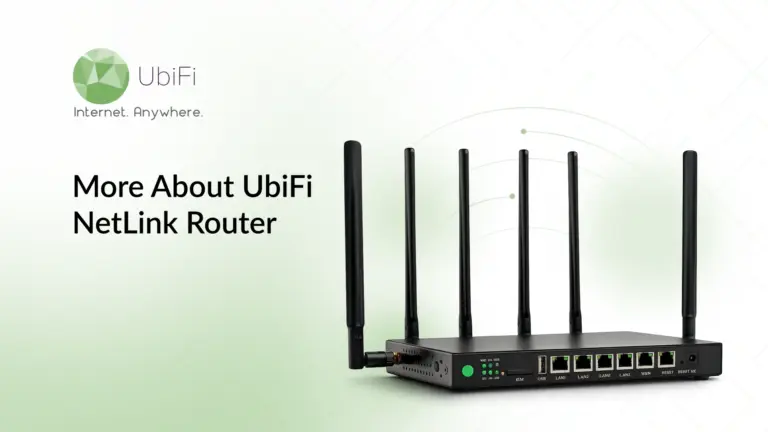
The UbiFi NetLink Router does exactly that. It finds the strongest 5G or 4G LTE tower near you, then sends a WiFi 6 network across your home, shop, RV, or boat. No cable installation or fixed broadband connection required.
Find out all about UbiFi NetLink Router in one place. The hardware is a good place to start.
Six Hardware Features That Actually Matter
The right hardware features determine how reliable, secure, and versatile your 5G router will be.
Two Nano SIM Slots
You get two SIM trays instead of one. If one carrier fails due to a storm or a tower goes down for repairs, your backup is already in place.
Carrier Aggregation
The router uses multiple cell bands simultaneously rather than pushing everything through a single busy band. The result is a high-speed, stable connection.
WPA2 and WPA3 Encryption
Both are built in, with Personal and Enterprise modes. WPA3 blocks the password-guessing attacks that older networks were open to. The Wi-Fi Alliance security documentation explains why that matters once you have smart locks and cameras on the same network.
Five Gigabit Ethernet Ports
Four switchable LAN/WAN ports plus one Gigabit WAN port. Plug in a desktop, a game console, a printer, and more. Anything that needs a rock-solid connection should be wired.
A Wide Temperature Range
It runs from 14°F to 158°F. A cold Minnesota garage in February and a hot Arizona shed in July both fall inside that range.
Flexible Storage and Expansion
A USB 3.0 port, a Micro SD slot, and two M.2 bays. Shared storage now, room to upgrade later.
These features tell you how it functions. Let’s dive deeper with the following spec sheet.
UbiFi NetLink Router Spec Sheet at a Glance
Learn all about UbiFi NetLink Router‘s key specifications in this quick overview:
Two specifications deserve a closer look. WiFi 6 (802.11ax) helps multiple devices stay connected without sacrificing performance. For a deeper explanation of how it works, see the IEEE overview of 802.11ax. The advertised 2 Gbps cellular speed is the hardware’s maximum under ideal 5G conditions, while typical real-world speeds of 100–200 Mbps comfortably support streaming, video calls, and remote work.
Understanding the specs is only part of the picture. Next, let’s see how easy the router is to set up.
Getting the NetLink Online in Under Ten Minutes
If you have ever searched how to set up a router and ended up confused with tech terms, this one is close to plug-and-play.
Put the SIM in first: Slide your active Nano SIM into slot one before you plug in power. Swapping it later is a common reason people end up staring at a router blinking green.
Power it on and wait: Plug in the 12V adapter and give it time to join the network. Two to three minutes is normal.
Check the lights before you worry: A steady internet light means you are online. An internet light flashing on the router usually means it is still looking for a tower, not that the unit is broken.
Connect to the WiFi: The network name and password are printed on the label underneath. Join it, then open the admin page in any browser.
Change both default passwords: The admin one and the WiFi one. Leaving the factory passwords in place is the most common security mistake people make.
Pick a good spot. Put the router up high, at a central location, away from microwaves and thick brick or concrete. Our guide on the best placement for a WiFi router shows where to start.
Ten minutes from box to browsing, that’s the entire setup.
Once it is running, you quickly notice the benefits.
Everyday Benefits of the UbiFi NetLink Router
These are the real-world advantages you’ll notice after setting up the router:
Coverage where wires don’t reach: Service works across much of the US where 4G LTE or 5G is available, and the router automatically selects the strongest tower.
Room for everyone at home: WiFi 6 and Gigabit Ethernet support up to 100 devices, from laptops to smart TVs and security cameras.
Streaming without hiccups: HD and 4K both work on supported networks, though quality depends on your local signal.
Gaming that stays smooth: Rural gamers get negligible lag on most popular online games where coverage is strong.
A main connection, not a backup: Homes, remote properties, and small businesses can use this as their primary internet connection.
Built for dependable performance: With 99.9% uptime and broad WiFi coverage, you can stay online with confidence.
Still deciding whether to keep rented equipment? Our piece on ISP-provided modem routers versus buying your own is worth a read, along with the signs you need a new router if yours keeps dropping out.
That leaves one question.
Is the UbiFi NetLink Router Right for You?
All about the UbiFi NetLink Router comes down to one thing: the cell signal is already in the air around your house, and this router turns it into real home internet. The UbiFi NetLink Router gives you dual SIM slots, carrier aggregation, WiFi 6, WPA3, and five Gigabit ports. That matches what you would get from any high-speed internet router built for a wired line, just without the wire.
That makes it a fit for rural homes, remote workers, RV owners, and small businesses that need one connection to handle everything. Check the cell coverage at your address, then try it. Plans start at $89.99 a month, and the 14-day return and exchange window gives you time to test it properly before you commit.
Kevin Peterson is a telecommunications expert and proud Chicago native with over a decade of industry experience. He’s passionate about expanding internet access and improving infrastructure, especially in underserved communities. Committed to bridging the digital divide, Kevin believes everyone deserves reliable connectivity in today’s digital world.
Internet That Moves With You — Plans Begin at $89.99/mo
Stay online from rural areas or anywhere on the road.